
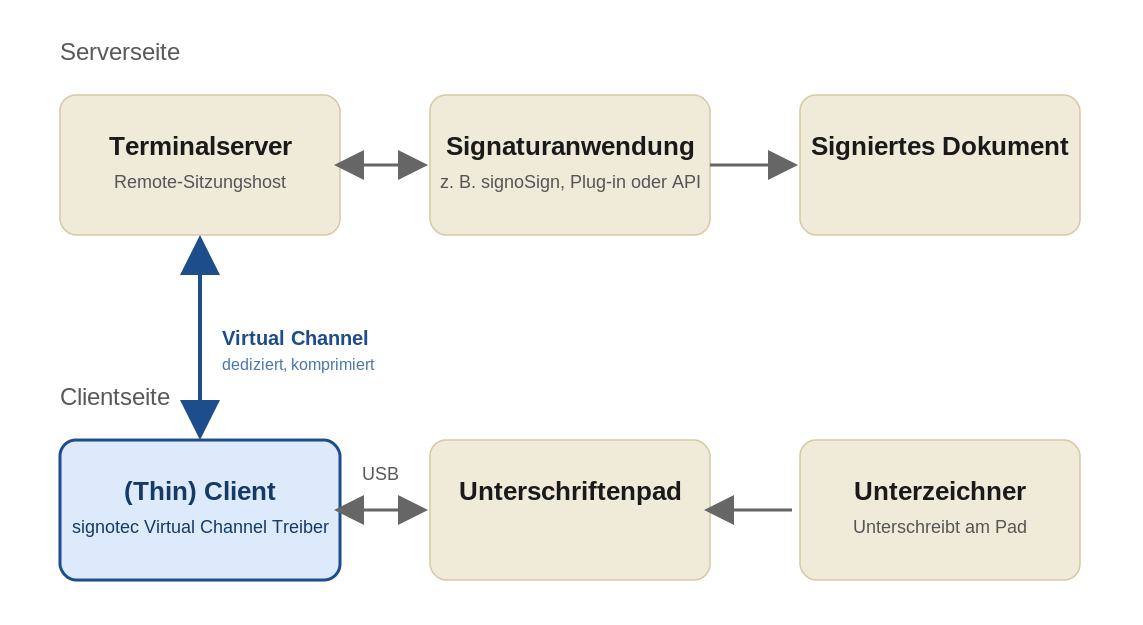
The signotec Virtual Channel driver establishes a dedicated, compressed channel between the locally connected signotec signature pad and the application on the Citrix server for Citrix Virtual Apps and Desktops. This variant is signotec's recommended option in Citrix environments and offers the lowest latency and best stability of all available connection mechanisms.
All signotec signature pads are Citrix-Ready certified.
How it works
After the signotec Virtual Channel driver has been installed on the client, a virtual channel between client and server is initialized when a Citrix session is started. All communication between the pad and the signotec-compatible application on the server is transported through this channel in compressed form and decompressed again on the other side. Compared with classic COM port mapping, this significantly reduces both network traffic and perceived latency — especially with pads that have a color display and document display.
From the server application's perspective, the pad remains addressable as a virtual COM port (COM1 or COM2 in dual-pad operation). The difference to the Virtual Serial Connection lies in the transport: instead of a serial emulation via Citrix COM redirection, the communication is transmitted through the dedicated Virtual Channel.
Supported pad variants
The Virtual Channel driver supports signotec signature pads both in the USB variant (U100, HID or WinUSB) and in the FTDI variant (FT100). On the client side, the driver communicates either directly via USB HID/WinUSB or via the virtual COM port provided by the FTDI chip, depending on the device variant. In both cases the pad appears uniformly to the server application as COM1 or COM2 in dual-pad operation.
For operation exclusively via the Virtual Channel, the U100 variant is sufficient; the FTDI variant is not required for a Virtual-Channel-only deployment and is typically procured only where environments other than Citrix (RDP fallback, classic COM port redirection) also need to be supported.
Prerequisites
-
Citrix Virtual Apps and Desktops 7 or newer
-
PC or thin client with Windows, Linux, or eLux
-
Citrix Workspace App installed on the client
-
signotec Virtual Channel driver installed on the client
-
Administrative privileges on the client for driver installation
Driver distribution in production environments is typically handled centrally via software distribution tools (e.g. SCCM, Intune, IGEL UMS). On IGEL thin clients the signotec Virtual Channel driver is already preinstalled.
Driver and licensing
The signotec Virtual Channel driver is provided in two variants:
-
Demo version — free of charge, with functional limitations, for testing the connection in your own environment.
-
Full version — commercially licensed, for production use. Available via signotec Sales.
The driver is delivered for Windows by default. Builds for Linux and eLux are available on request via signotec Support.
Installation
The driver is installed on the client with administrative privileges. In the installer you can choose between a standard installation (one virtual channel) and a custom installation (one or two virtual channels). If dual-pad operation is required at a workstation, two channels must be installed.
General information on the installation and configuration of Citrix Virtual Apps and Desktops is available in the Citrix documentation.
Citrix configuration
To use the Virtual Channel, the Virtual channel allow list policy (German: Positivliste für virtuelle Kanäle) must be enabled in the Citrix policies. In this allow list, it is defined for each virtual channel which server-side application is permitted to use the channel.
Syntax example:
STCPAD1,C:\Program Files\signotec\signoSign2\signoSign2.exe
STCPAD1,C:\Program Files (x86)\Adobe\Acrobat Reader DC\Reader\AcroRd32.exe
STCPAD1,C:\Program Files (x86)\Adobe\Acrobat DC\Acrobat\Acrobat.exe
STCPAD2,C:\Program Files\signotec\signoSign2\signoSign2.exe
STCPAD2,C:\Program Files (x86)\Adobe\Acrobat Reader DC\Reader\AcroRd32.exe
STCPAD2,C:\Program Files (x86)\Adobe\Acrobat DC\Acrobat\Acrobat.exe
STCPAD1 designates the first, STCPAD2 the second virtual channel that has been installed on the client via the signotec Virtual Channel driver. After the comma follows the full path to the server-side application that is permitted to use the channel. In the example these are signoSign/2 as well as Adobe Acrobat Reader for use with the signotec Adobe Acrobat plug-in.
If additional signotec-compatible applications (e.g. custom line-of-business applications using the signoPAD-API) are used on the server, extend the allow list accordingly.
Parallel use with USB Redirection
If Citrix Generic USB Redirection is additionally used on the same client, it must be prevented that both mechanisms access the pad at the same time. In this case, enter a Deny rule for signotec pads in the USB device policies:
DENY: VID=2133 # signotec signature pads
This excludes signotec pads from generic USB redirection and ensures that they are connected exclusively via the Virtual Channel.
Dual-pad operation
Two signotec signature pads can be operated simultaneously at one workstation ("dual-pad mode"). This requires the installation of two virtual channels on the client (custom installation) as well as the corresponding configuration of the allow list in the Citrix policies.
In the server-side application, the pad of the first channel is accessible as COM1 and the pad of the second channel as COM2.
Verification
After installation and configuration, the connection can be tested with a signotec-compatible application in the Citrix session — for example with signoSign/2 or a line-of-business application using the signoPAD-API. If the pad is detected in the application as a COM port (COM1 and additionally COM2) and responds to input, the Virtual Channel is set up correctly.
In case of problems, check in the following order: driver installation on the client, Citrix policy for the allow list (with correct paths to the application), version of Citrix Workspace App and Citrix Virtual Apps and Desktops. For further questions, please contact signotec Support.