
Workflow plans enable frequently used signature processes to be saved as reusable templates. This means that processes can be restarted at any time, either exactly as before or with customized settings.
A workflow plan can contain all relevant information and settings for a signature process, including documents, recipients, signing order, and the assignment of signature and form fields.
When using the system, users can flexibly enter non-predefined values without having to reconfigure the entire process. In this way, workflow plans support the efficient, error-free, and consistent execution of recurring signature processes.
Managing workflow plans
Workflow plans can be managed via the web interface of the “Document Pool“ or the REST API.
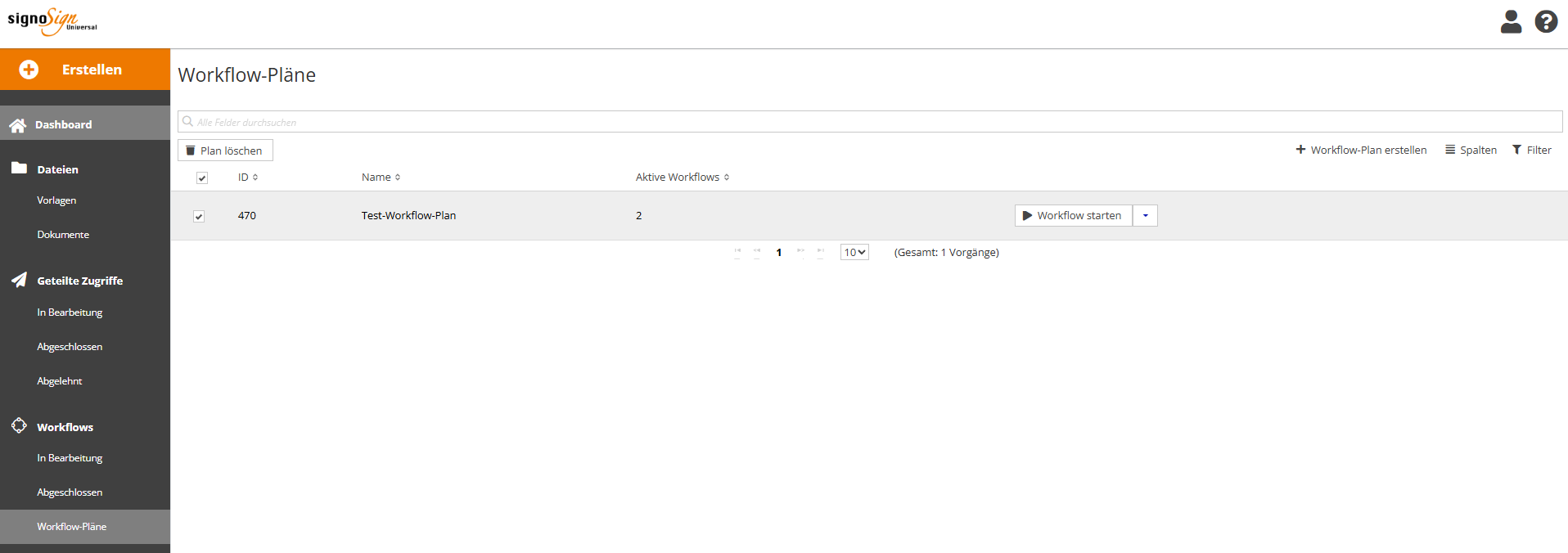
The workflow plans can be found in the “Workflow plans“ menu area of the web portal. There, new plans can be created and existing plans can be edited or deleted.
Creating a workflow plan
The button for creating a workflow plan is located in the “Workflow plans“ section of the web portal. There, to the right above the table under the search field, you will find the function “Create workflow plan.“
The workflow plan is created in exactly the same way as a normal workflow. All setting options are described in the ”Workflows“ section of the user manual.
In addition, the following rules apply to workflow plans:
-
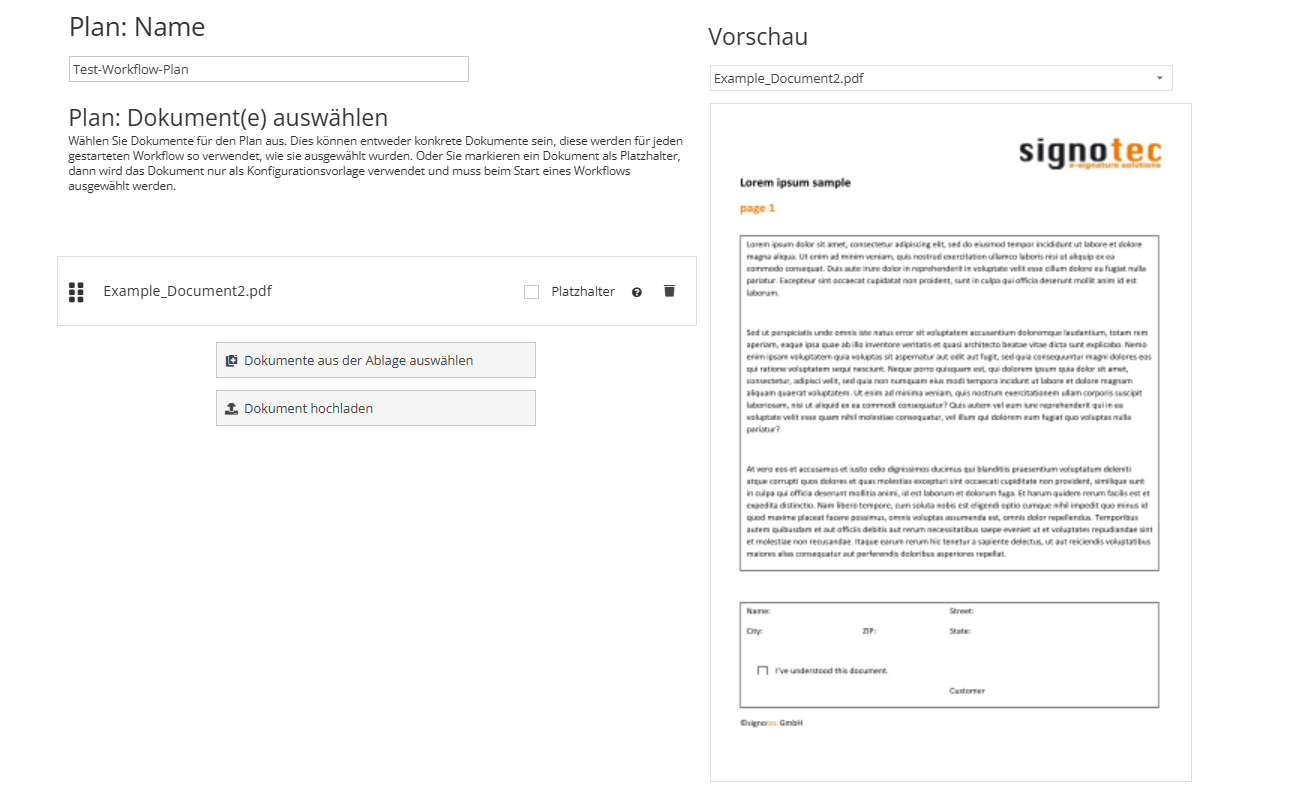
When adding a document, you can decide whether it is a fixed (static) document or a placeholder.
-
A fixed document is transferred 1:1 into the workflow (e.g. a generic privacy policy).
-
A document used as a “placeholder“ must later be replaced by the user with an individual document before the workflow is started (e.g. a contract document).
-
-
When creating the workflow plan, any fields can be left blank, e.g. name and email address. These must then be added when using the workflow plan.
The following applies in the workflow plan: All predefined fields are fixed and cannot be changed by the user. All blank fields must be filled in by the user when using the plan.
Using a workflow plan
The “Workflow plans“ overview displays all created workflow plans (templates). The ID, name, and number of currently active workflows are displayed for each plan.
To execute a saved workflow plan, select the “Start workflow“ option for the desired plan.
When using a plan, the usual workflow wizard starts. The settings and values of the workflow are pre-filled from the plan, so that the user only has to fill in the values that were deliberately left open in the workflow plan.
These include, for example:
-
documents defined as “placeholders“
-
recipient details
-
form field assignments
-
email notifications
Once all the required information has been filled in, the workflow can be started as usual.
The tracking of the started workflow is basically identical to a normal workflow. More details are described in the “Workflows“ section of the user manual.